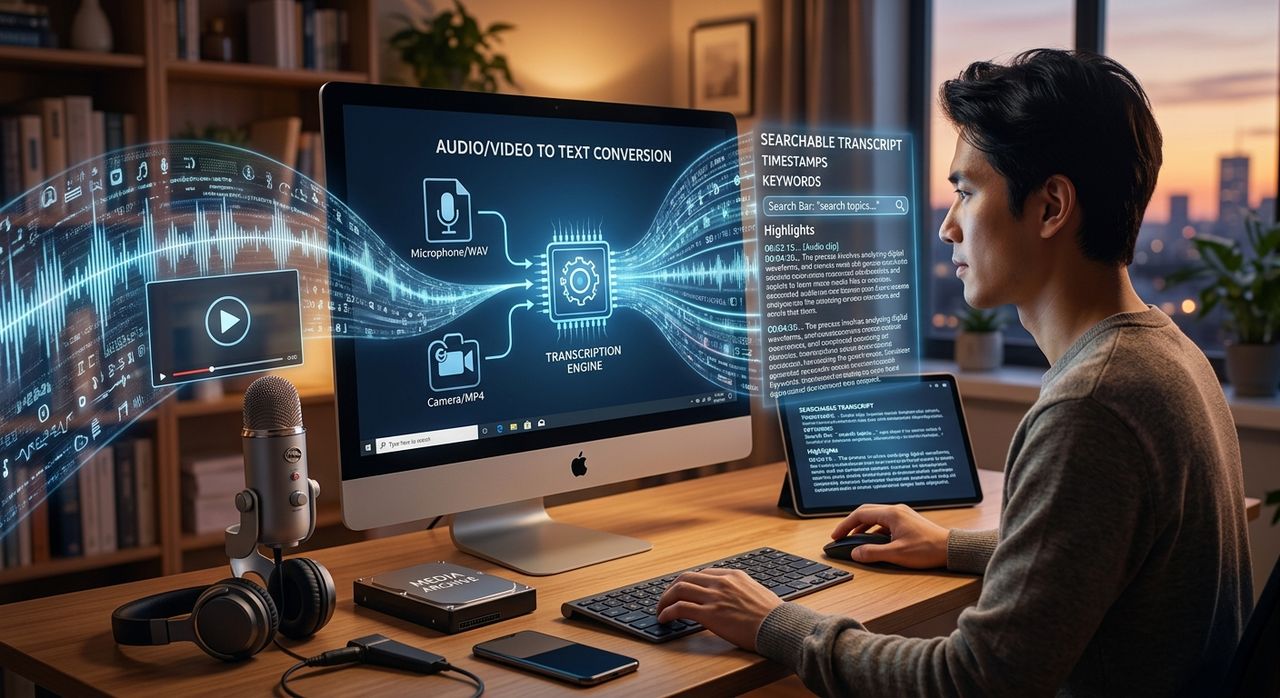
You recorded a one-hour client call. Or maybe a research interview. Or a team meeting packed with decisions that need follow-up. Now you need the actual words. Listening back, minute by minute, is painful. Searchable text is what you really want, and getting there is simpler than most people assume.
Browser-based transcription on Windows is now genuinely reliable for professional use.
- Modern AI handles natural speech, crosstalk, and technical vocabulary far better than the rule-based tools of five years ago.
- You can convert a full recording entirely in the browser, no software installation required.
- The result is copy-paste-ready text you can search, highlight, and share immediately.
Why Searchable Text Changes How You Work
Think about what you actually do after a meeting. You try to remember what was said. You write notes from memory. You scrub through a recording at 2x speed hoping to catch a number someone mentioned. This process is slow, and things fall through the cracks.
Text is different. You can press Ctrl+F and find the exact moment a client said "by Friday." You can copy a quote into a report without retyping it. You can share a document and let your whole team annotate it.
This matters especially for people in these situations:
- Client calls, where commitments and pricing discussions need a written record
- Research interviews, where you need quotes that are accurate to the word, not paraphrased from memory
The moment your audio becomes text, it becomes a working document rather than a passive recording.
The Old Way Versus the New Way
Not long ago, transcription meant one of three things. You hired a human transcriptionist. You bought specialized software and installed it on your PC. Or you wrestled with built-in dictation tools that worked only for live speech, not pre-recorded files.
All three options had real friction. Human transcription is accurate but expensive and slow. Installed software required a license, a compatible Windows version, and often a manual workflow to get your files in and out. Built-in dictation tools were simply not designed for recorded audio.
The shift happened because the underlying technology changed. Modern transcription tools are built on AI models trained on enormous amounts of real speech data. This is fundamentally different from how older rule-based tools worked, where software matched sounds to a fixed phonetic dictionary. The history of speech recognition makes clear why accuracy improved so dramatically once neural models became practical, moving away from rigid phoneme matching toward models that understand context and natural flow.
What Browser-Based Transcription Actually Means
Browser-based means no download, no install, no compatibility check. You open a tab in Chrome or Edge, upload your audio or video file, and processing happens without any local software doing the heavy lifting.
On Windows, this works without any special setup. Your existing browser handles it. You do not need administrator access. You do not need to configure a microphone. You simply need the recording file and a browser tab.
The practical implication is that any PC user in any organization can try this today, without waiting for IT to approve a software request or budget a license fee.
How to Convert a Recording to Text, Step by Step
Here is a straightforward process for turning a recorded interview or meeting into a text document:
- Export or locate your recording file. Most call recording apps, Zoom, Teams, and screen capture tools save files as MP3, MP4, WAV, or M4A. Any of these formats will work with modern transcription tools.
- Open the transcription tool in your browser. For recorded conversations, especially Q&A-style exchanges, a dedicated page for interview transcription handles the back-and-forth format well and runs entirely in the browser on Windows without any setup.
- Upload your file. Drag the file into the tool or use the file picker. You do not need to pre-process or convert it first.
- Wait for processing. Depending on the length of the recording, this takes a few minutes. A one-hour recording typically returns text in under five minutes with a modern AI-powered tool.
- Review and correct. Read through the output. AI transcription is accurate but not perfect. Names, acronyms, and domain-specific terms occasionally need a manual fix.
- Export the text. Copy it into a Word document, a Google Doc, Notion, or wherever your workflow lives.
That is the full process. No installation step, no license key, no compatibility problem.
Getting Better Results From Your Recordings
The quality of your transcript depends partly on the quality of the source recording. A few habits make a meaningful difference:
- Use a headset or a dedicated USB microphone rather than a built-in laptop microphone, which picks up keyboard noise and room echo
- Record in a quiet space, or enable noise suppression in your recording app before you start
- Ask speakers to identify themselves near the beginning if you need speaker attribution in the final text
- Avoid heavily compressing the audio file before uploading, since compression artifacts reduce accuracy
None of these are hard requirements. The tools handle real-world recordings well. But each improvement you make at the recording stage saves you editing time on the back end.
Fitting Transcription Into a Regular Workflow
Browser-based transcription is not just for one-off use. Once the process is familiar, it becomes a standard step after every recorded call or meeting. Some professionals paste the transcript into a notes template and highlight action items directly. Others archive it alongside the original recording for compliance or client history purposes. The text file is searchable forever. The audio recording is not.
For research work, the payoff is even more direct. A written transcript lets you pull exact quotes for reports, spot patterns across multiple interviews, and organize your findings by theme rather than by recording order. That is work that simply cannot be done efficiently with audio files alone.
From Recording to Reference: Making Your Audio Files Actually Useful
Audio files age poorly as knowledge assets. They sit on a drive, and nobody goes back to them because finding anything specific requires listening. A text document is something your team can actually use, months later, without remembering which call it was or where the file lives.
The barrier to making this switch used to be real. It involved spending money, installing software, or learning a specialized tool. That barrier is essentially gone now. Your browser on Windows is enough. The technology has caught up to the need, and the practical step is simply to start using it after your next call.