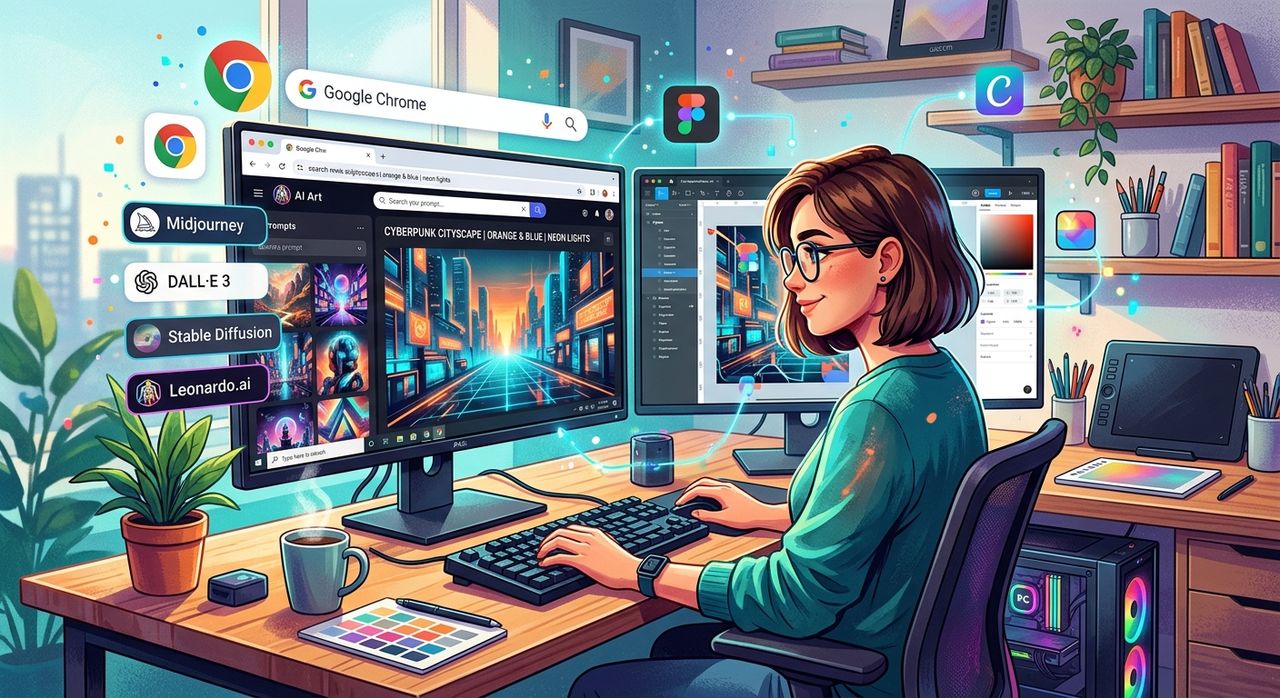
If you still launch Photoshop every time you need to cut out a logo, resize a headshot, or strip a background from a product photo, you are spending more time on setup than on the actual task. Browser-based AI image tools have reached a point where the gap with desktop software is almost unrecognizable for everyday edits. You open a tab, drop in your image, and you are done in under a minute. No installation. No subscription dialog boxes. No waiting for a 2 GB app to load.
AI image tools in the browser are now a serious part of a PC workflow. The average user handles a handful of image edits each week that do not need the full power of GIMP or Photoshop.
- Browser tools powered by AI handle background removal, object erasure, and basic composition in seconds.
- Generative AI tools let you create images from text descriptions without any design background.
- Knowing how to write a good text prompt separates passable results from genuinely usable images.
What Changed to Make Browser Tools This Capable
Desktop image editors have dominated since the early 1990s. The open-source desktop editor that became GIMP has been around since 1996, and it remains one of the most technically capable free tools available. But capability and convenience are two different things.
For years, the browser was not the right place for heavy image work. Slow JavaScript, no GPU access, and limited file handling made web tools feel like toys. That changed with WebAssembly, better browser APIs, and the maturation of machine learning models small enough to run in a cloud backend with near-instant response times. The tools you use in a browser today are not the clunky editors of 2012. They run real AI models. They make decisions about edges, transparency, and lighting that would have taken a skilled Photoshop user twenty minutes and a lot of patience.
The Edits That Actually Eat Your Time
Most PC users do not spend their day compositing film posters. They do smaller, repetitive tasks over and over:
- Removing the background from a product photo for an online listing
- Cutting out a headshot and placing it on a clean background
- Cropping and resizing images to fit a specific format
- Adjusting brightness or removing an unwanted object from a photo
- Generating a visual to go with a blog post or presentation slide
These are not tasks that need 300 layers or a curves panel. They need speed and a solid result. That is where browser AI tools have genuinely earned their place in a PC workflow.
Cutting Out Backgrounds Without Touching a Selection Tool
Background removal used to be the most tedious part of photo editing. You spent time with the lasso tool, zoomed in to 400 percent, tracing around hair and clothing pixel by pixel. Even experienced Photoshop users dreaded it.
AI changed that completely. The technique driving modern background removal is a form of image segmentation, where a neural network classifies each pixel as either subject or background. The accuracy is striking, even around complex edges like curly hair or transparent objects.
If you regularly edit product shots or profile photos, an AI-powered background remover handles the work in seconds. You upload your image, the AI identifies the subject, strips the background, and hands you a clean PNG with a transparent layer. No manual masking. No Refine Edge dialog. No wondering if you clipped part of an ear.
This is exactly the kind of task where browser tools beat desktop software on sheer speed. You do not save time learning GIMP. You save time by not opening it at all.
Desktop App vs. Browser Tool Across Five Common Tasks
Here is a practical breakdown of the difference between reaching for a desktop editor versus using a browser AI tool for the edits that show up most often:
- Background removal: Desktop editors require manual selection or a third-party plugin; browser AI tools process the image automatically in under ten seconds.
- Profile photo resize and crop: Most desktop apps load slowly and require manual canvas setup; browser tools often handle this with a single click after upload.
- Object removal: Photoshop's Content Aware Fill is powerful but buried in menus; browser AI tools surface erasure as a primary feature you see immediately.
- Color correction and brightness: Both handle this well, though desktop editors offer more manual control for professional color grading work.
- Image generation from a text description: Desktop apps do not do this natively; browser AI tools with text-to-image features are the only realistic option for most PC users.
The pattern is consistent. For precise, professional work, desktop editors still have the edge. For fast, repeatable everyday tasks, browser tools win almost every time.
When You Want to Create, Not Just Edit
Background removal and cropping cover one half of what modern browser AI tools do. The other half is creation. Text-to-image generation lets you describe what you want and receive a usable image in seconds. A blog header. A product mockup concept. A custom slide background. Images that would have required either stock photo subscriptions or a graphic designer.
The gap between a mediocre generated image and a genuinely useful one comes down almost entirely to how you write the input. Vague descriptions produce vague images. Specific, structured inputs produce images that actually match what you had in mind.
If you want to get better results from any text-to-image tool, spending an hour with a focused learn prompting guide pays off faster than trial and error ever will. The principles behind effective prompts are consistent across most AI image tools, so the time you put in applies broadly, not just to one platform.
Building the Browser Tool Habit
Switching any habit takes a deliberate choice. Here is a practical way to decide when a browser tool makes more sense than a desktop editor:
- Open a browser tool when the edit has a clear start and finish, involves a single image, and does not require layered compositing.
- Open GIMP or Photoshop when you need precise manual control, are working on a multi-layer project, or need features like adjustment layers, channels, or advanced color grading.
Most PC users doing occasional image work will find that a browser handles around 80 percent of what they actually need. The desktop editor becomes the specialized tool for the remaining 20 percent, rather than the default choice for everything.
The Workflow That Makes the Most of Your PC
The honest reason most people still open GIMP by default is habit, not necessity. Browser AI tools are faster for the tasks that appear most often, and they have removed the technical barriers that used to make web-based editing feel limited. You do not need to abandon your desktop editor. You just need to stop defaulting to it for every single task.
Add a browser image tool to your workflow for background removal and basic edits. Put time into writing better text prompts for generation. Let the desktop editor do what it does best, which is the deep, precise work that actually needs it. That division of labor is not a compromise. It is the most practical way to use the tools available to you right now.