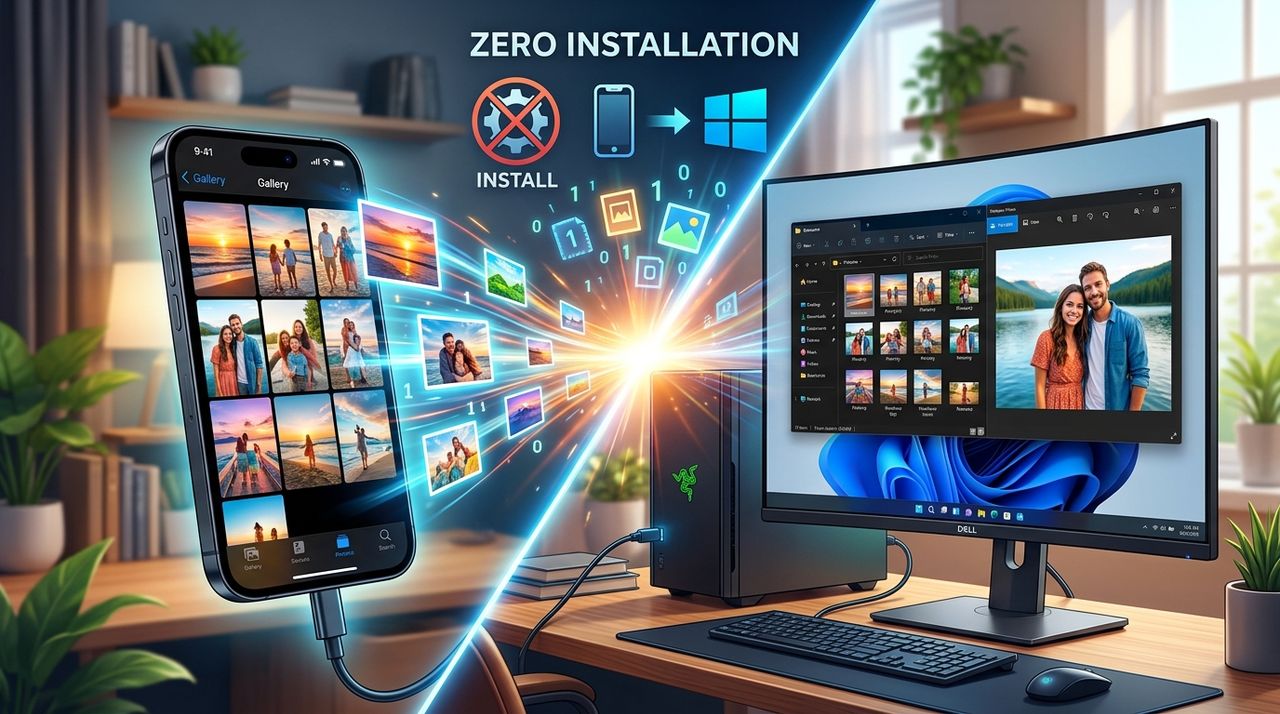
You plug your iPhone into your Windows PC, open the camera roll folder in File Explorer, and suddenly every thumbnail is a blank grey square. The filenames all end in `.heic`, and Windows Photo Viewer has absolutely no idea what to do with them. This is not a broken cable or a corrupted transfer. It is Apple's default camera format doing exactly what it was designed to do, on an operating system that was never designed to handle it natively. The fix is faster than you probably expect, and it does not require installing a single thing.
Key Takeaway:
1. iPhone photos saved in HEIC format will not open in Windows Photo Viewer without a codec that Windows does not include by default.
2. A browser-based HEIC converter lets you upload your photos and download converted JPGs in seconds, with no software to install.
3. Converting to JPG also standardizes your file names and sidesteps codec licensing friction that affects several Windows photo apps.
Why Your iPhone Uses a Format Windows Cannot Read
Apple switched its default camera format from JPEG to HEIC starting with iOS 11 in 2017. The move made sense from a storage perspective. The format, officially called HEIF, compresses photos to roughly half the file size of an equivalent JPEG with no visible drop in quality. For a phone with a 256 GB drive and a 48-megapixel camera, that difference adds up fast.
The problem appears the moment you move those files off the iPhone. Windows 10 and Windows 11 both require a paid Microsoft HEVC Video Extensions codec to open HEIC files natively. Microsoft sells this through the Microsoft Store for around one dollar. That is not a steep price, but it is an annoying barrier for something as basic as viewing your own photos, and the codec does not always play nicely with every third-party photo editor already on your system.
What Happens When You Open the Camera Roll Folder
When you connect an iPhone to a Windows PC via USB, Windows treats it like a portable device. You can browse the folder structure through File Explorer, and the photos will carry the `.heic` extension. Double-clicking one of those files usually triggers one of three outcomes:
- Windows asks which app you want to use, then fails with every option you try.
- Windows Photo Viewer opens and displays a blank grey square.
- A prompt appears asking you to get an app from the Microsoft Store.
None of these are useful when you just need to look at a photo from last weekend.
The Zero-Install Fix: Convert in the Browser
The most direct path is a HEIC converter that runs entirely inside your browser. You visit the page, drag your HEIC files onto it, and download standard JPGs. No account required. No software to install. No file size limit that forces you to split a large batch into multiple trips.
Modern browser-based converters process your images locally rather than shipping them to a remote server. That matters if you are converting personal photos you would prefer to keep private. The resulting JPG files land in your Downloads folder and open in every image viewer, photo editor, and email client without any further steps.
How Many Files Can You Convert at Once
Batch conversion is where the browser tool really earns its place. If you have three hundred photos from a vacation, you can select them all, drag them in together, and let the converter work through the whole batch. This is significantly faster than any workflow that involves opening each file individually or routing everything through Apple's own software on a Mac you may not even own.
When the JPGs come out the other side, they carry the same base filename as the original HEIC. So IMG4821.heic becomes IMG4821.jpg. That matters for organization. File managers sort images numerically or alphabetically by name, and keeping the original naming scheme intact means your photos stay in the correct chronological order without any manual renaming afterward.
The Codec Licensing Problem Windows Never Fully Solved
The HEVC codec that underpins HEIC is covered by a complicated web of patent licensing agreements. Microsoft chose not to bundle it into Windows by default because doing so would mean paying royalties on every copy of Windows shipped. That is why the codec sits in the Store rather than arriving with the operating system.
This has a practical side effect beyond cost. Some professional photo apps handle the Microsoft HEVC codec inconsistently. Adobe Lightroom has its own HEIC parsing layer that bypasses the Windows codec entirely, while older Photoshop versions may not recognize HEIC at all, even after you install the codec. Converting to JPG before importing sidesteps all of that. You end up working with a format that has been universally supported since the late 1990s, and nothing breaks regardless of which app you open next.
When to Change the iPhone Setting Instead
If you transfer photos to a Windows PC regularly, there is a setting on the iPhone that removes the problem at the source. Under Settings, Camera, Formats, you can switch from High Efficiency to Most Compatible. This makes the camera save JPEGs directly. The tradeoff is roughly double the file size per photo, so you fill up storage faster. For most people, the smarter workflow is to keep shooting in HEIC for space efficiency and convert only the photos you actually need to transfer.
Keeping Your PC File System Predictable
PC optimization is not only about RAM and startup programs. It also means keeping your file system in a state that every piece of software on your machine can handle without plugins or workarounds. A folder full of HEIC files is a liability. The moment you try to attach one to an email, drag it into a presentation, or share it through a messaging app, you may hit an error or see a blank preview on the other end.
JPGs do not carry that risk. They are the lowest common denominator of image formats in the best possible sense. Every browser, every email client, every photo editor, and every messaging platform handles them immediately and correctly. Converting your iPhone photos as you transfer them is a small habit that eliminates a surprising amount of friction over time, especially on machines shared with colleagues or family members who may not know what a codec is or where to find one.
From Camera Roll to Your Desktop, Without the Guesswork
iPhone photos on Windows do not have to be a compatibility puzzle. HEIC is an excellent format on the phone, where storage space is precious, but once those files land on a PC, the universal argument for JPG wins out. A browser-based converter closes that gap in about the time it takes to make a cup of tea, with no installation required, no codec purchase, and no risk of your photo app throwing an error because it cannot parse an unfamiliar format.
The next time File Explorer shows you a folder full of grey thumbnails, you know exactly what is happening and exactly how to fix it.