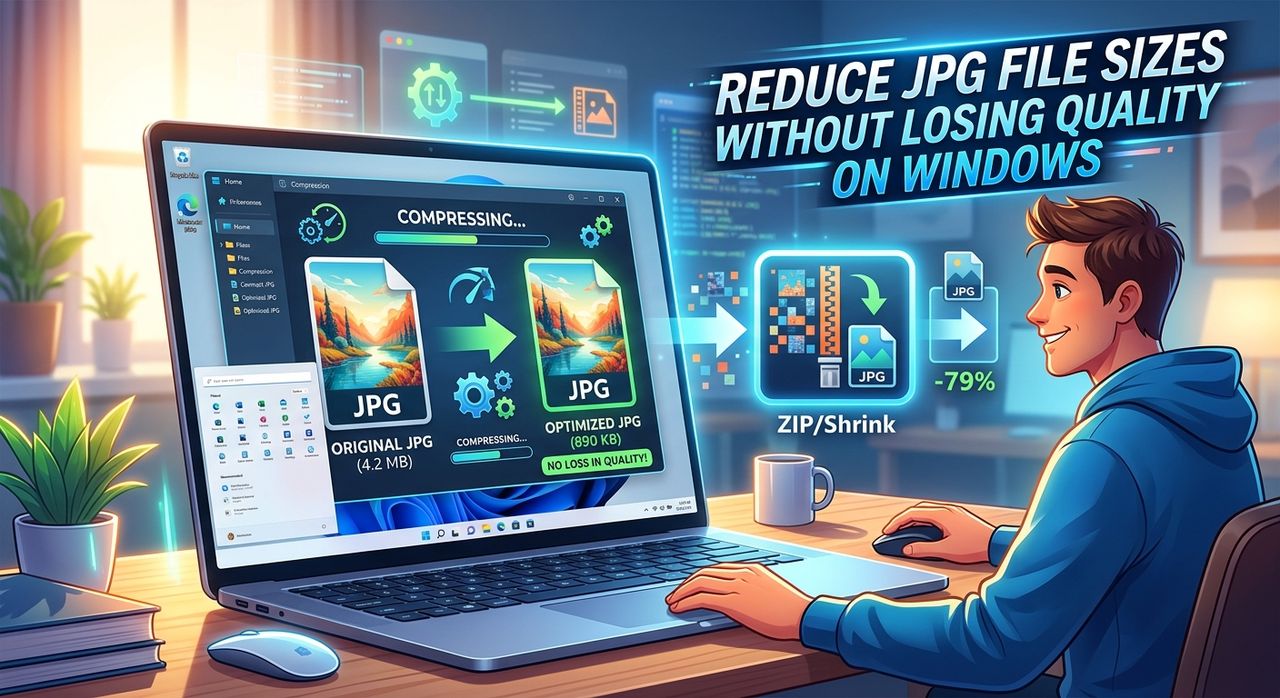
If you've ever tried to email a batch of screenshots to a colleague, only to get a bounce-back saying your attachment is too large, you know exactly how frustrating oversized JPG files can be. On a Windows PC, images pile up fast. Product photos, presentation screenshots, scanned documents, anything saved as a JPG can balloon to several megabytes before you even notice. And when those files need to travel, whether by email, cloud sync, or across a shared network drive, their size becomes your problem.
Your images don't have to take up this much space.
- Most JPG files contain far more data than the human eye can perceive, and stripping that excess can cut file sizes by 50 to 80 percent with no visible loss in quality.
- Browser-based compression tools run directly in Windows without any installation, no admin rights needed, no performance hit on your machine.
- A two-step workflow, compress first and clean up the image background second, gets your files fully share-ready in under a minute.
Why JPG Files Are So Big in the First Place
Every digital camera, screenshot utility, and image editor has the same default behavior: save at the highest possible quality. That makes sense if you're archiving originals, but it's overkill for anything you're about to send over email or drop into a PowerPoint deck.
The science behind JPEG encoding means the format is already applying some compression, but the quality settings most software defaults to still leave a huge amount of unnecessary data in the file. A 4 MB screenshot might be delivering the same visual information as a 500 KB version. The viewer sees the same image. The file is eight times smaller.
This matters because Windows doesn't touch your image files automatically. It stores exactly what the saving application wrote, no trimming, no optimization. So the bloat accumulates silently, folder by folder, until something breaks.
The Real Cost of Oversized Images on Your PC
Oversized JPG files cause friction at every stage of a typical Windows workflow.
Email attachments run into size limits almost immediately. Most providers cap attachments between 10 MB and 25 MB. Five uncompressed screenshots from a 1080p monitor can exceed that ceiling in one go. Your email bounces, you scramble for a workaround, and you waste time you didn't need to waste.
Cloud sync chokes on large image folders. OneDrive and similar services throttle based on file size and bandwidth. A folder of raw product photos can hold up your entire sync queue for an hour or more, making it look like the service has failed when the actual problem is sitting in your image files.
Shared network drives often have storage quotas enforced by IT teams. Dropping a folder of unoptimized JPGs into a department drive is a reliable way to get a call from infrastructure before the day is out.
None of this has to be a regular part of your routine.
Windows Image Handling Methods Compared
| Method | Requires Installation | Quality Control | Good for Batches | Time to Start |
|---|---|---|---|---|
| Browser-based compressor | No | Yes | Yes | Immediate |
| Windows Photos (export) | No | Limited | No | Moderate |
| Desktop image editor | Yes | Full | Depends on app | Slow |
| Command-line batch tools | Yes | Advanced | Yes | Complex setup |
For most Windows users who need to compress a few images before sending them, browser-based tools win on every practical measure.
Compressing JPGs in Windows Without Downloading Anything
This is the part that catches people off guard. You genuinely don't need to install anything.
JPG compression in the browser means you drag your file into a browser tab, the tool processes it, and you download the smaller version. That's the entire workflow. No account setup, no license key, no waiting for an application to launch. Just the browser you already have open.
For Windows users, this is a natural fit. You're already in the browser to manage email and cloud storage. You compress the image, switch tabs, and attach the smaller file. The whole detour costs about thirty seconds.
What you actually gain is significant. A product photo shot on a smartphone that comes in at 5 MB can routinely drop to under 700 KB with no visible difference at normal viewing sizes. Presentation screenshots with text and flat colors often compress even further because large uniform areas of color are particularly efficient to compress.
The original file on your hard drive stays untouched throughout. You're working with the output copy, so there's no risk in making this part of your standard send-before-you-share routine.
What Makes a Good Compression Tool
Not every browser-based compressor is worth your time. These are the things that separate the useful ones from the frustrating ones:
- Side-by-side preview: You should be able to see the compressed image next to the original before downloading, so you can judge whether the quality meets your needs for that specific file.
- No server storage: Good tools process everything in-browser or delete your files immediately after the download completes. Your images should never be sitting on someone else's server after the session ends.
- Multi-file support: Compressing one image at a time works fine for occasional use, but if you regularly deal with batches of screenshots or product photos, find a tool that handles multiple files in a single pass.
Cleaning Up Images for Presentations and Client Materials
Compression handles the size issue. But if your images are going into a presentation, a client proposal, or a product listing, there's usually a second problem waiting: the background.
A product screenshot with a cluttered Windows desktop visible behind it looks careless. A headshot taken in a home office with furniture and boxes in the frame doesn't belong in a professional slide deck. Running your image through a background remover solves this in the same browser, with the same drag-and-drop simplicity.
The tool isolates the subject and strips everything behind it. You download a clean image ready to drop into any document, template, or email body. No Photoshop, no selection tools, no manual masking. For Windows users who regularly prepare images for colleagues or clients, adding this step takes the same amount of time as the compression step and produces a noticeably more polished result. Product images look intentional. Headshots look usable. Presentation assets look like someone took the time to prepare them properly.
Building a Smarter Image Habit on Windows
The reason most Windows users end up with bloated image folders isn't carelessness. It's that compression isn't part of the default workflow, and the problem only shows up when something breaks.
Understanding image compression helps reframe the habit: you're not degrading your images by compressing them, you're removing data that the eye doesn't use anyway. The original stays on your drive. The compressed copy is what you share. There's no risk in the workflow, only time saved.
A few habits that make a real difference over time:
- Set up a dedicated staging folder in your Documents library, something labeled "Ready to Send" or "Compressed Exports," so compressed images never get mixed up with originals.
- After compressing, add a short suffix like "-sm" to the filename so you always know which version is the optimized one without opening both.
- For anything going into a client-facing document, run the background removal step after compression so your final file is both smaller and cleaner before it lands in anyone's inbox.
When Your JPG Files Stop Getting in the Way
Oversized images on Windows are a manageable problem. The files aren't hard to shrink. The tools aren't hidden behind subscriptions or complicated setups. Most of the friction comes from not knowing where to start or assuming you need desktop software to do it properly.
A browser-based compression step takes thirty seconds. A background cleanup step takes another thirty. Together, they produce files that email without bouncing, sync without stalling, and look like they were prepared intentionally rather than grabbed off the desktop and sent as-is.
The next time an attachment bounces back or your OneDrive queue freezes on a folder of images, you'll know exactly what to do and exactly how little time it takes to fix it.