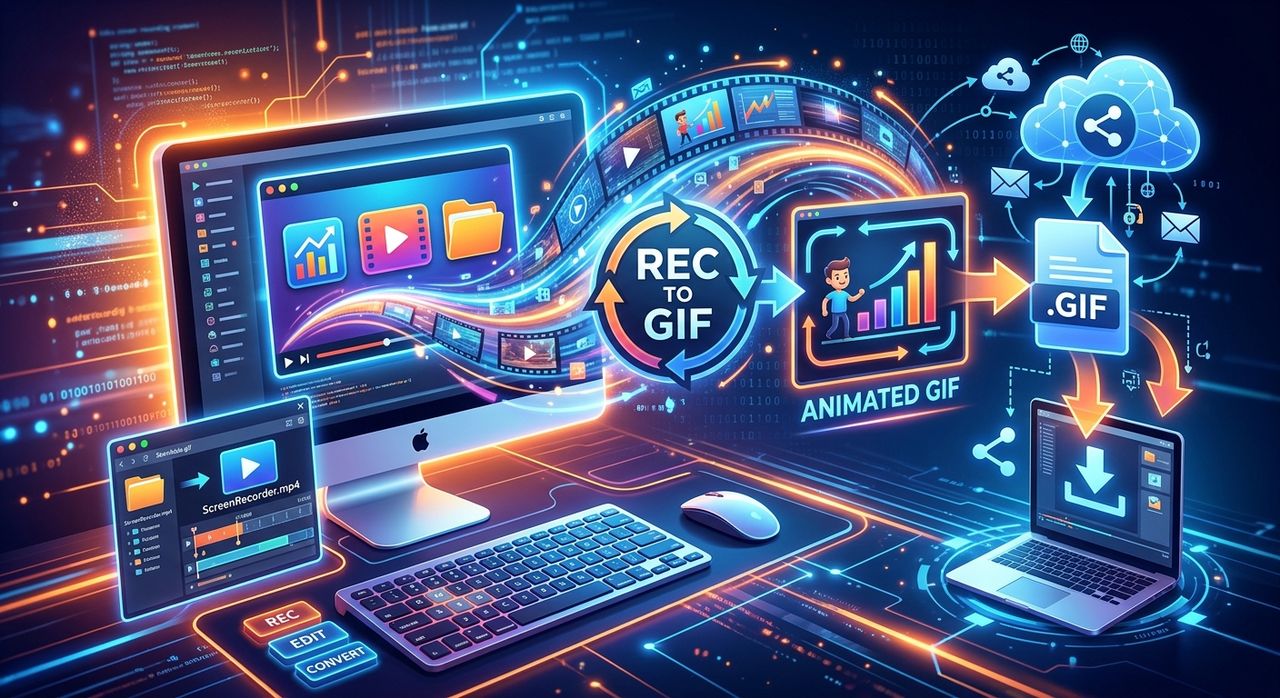
Recording a short demo clip is easy. Getting your teammates to actually see it without making them download a 40MB file is the hard part. GIFs solve that problem cleanly. They loop automatically, they play inline the moment someone loads the page, and they paste directly into GitHub issues, Discord threads, Notion pages, and internal wikis with no extra steps. If you've ever sent a bug reproduction video and had someone reply "can't open this," a GIF is the format you should be using instead.
Key Takeaway:
1. GIFs loop automatically and display inline in GitHub, Discord, and most documentation tools with no download required from your teammates.
2. You can convert an MP4 screen recording to a GIF entirely in your browser, skipping FFmpeg and desktop video editors.
3. Keeping recordings short and focused makes GIFs far more useful than long video walkthroughs for async team communication.
Why Developers Keep Reaching for GIFs
Despite being a decades-old image format that predates the modern web, GIFs have outlasted dozens of better-compression alternatives because they do one thing perfectly: they display moving images inline, everywhere, with zero media player required.
For developers, that matters enormously. When you're filing a GitHub issue, you want to show the exact moment a dropdown menu breaks, not write three paragraphs trying to describe the behavior in text. When you're posting in a Discord channel, you want your teammate to see the bug the moment they scroll past your message, not after they've clicked a link and waited for a video to buffer.
GIFs are also the universal visual language of async teams. They work in Slack, Jira, Confluence, Notion, Linear, and even plain-text emails rendered in modern clients. A well-timed GIF in a pull request comment can replace an entire back-and-forth thread about what exactly is broken and where.
The Problem With Sharing Raw Video Files
Most screen recording tools on Windows, including Xbox Game Bar, OBS, and ShareX, save output as MP4 or MKV files. These formats are great for quality but they're genuinely awkward for inline sharing. When you paste a raw video link into a GitHub issue, your teammate sees a file attachment instead of a preview. They have to click through, wait for it to download, and open it in a local player. Mobile users often cannot play it at all, and older email clients strip the attachment entirely.
MP4 files also carry audio tracks, metadata, and variable frame timing that adds file size without adding clarity for a short demo. A five-second bug reproduction simply does not need 48kHz stereo audio alongside it. The overhead is real, and the friction it creates is even more real.
What GIFs Do Differently
A GIF strips away everything except the visuals. It loops forever without any user interaction. It's treated by every platform as a static image rather than a media object, so it embeds inline without a player chrome. That stripping-down is a feature, not a limitation. Your teammates see exactly what you recorded, immediately, in the middle of whatever thread you posted it to.
The tradeoff is file size if you're careless. A long, high-resolution GIF can balloon quickly. That's why keeping recordings short and choosing sensible output settings before you export is the right habit to build from the start.
How to Convert Your Screen Recording in a Browser
You don't need FFmpeg. You don't need Handbrake or any desktop editor. The MP4 to GIF browser tool handles the whole conversion without installing a single application on your machine.
Here's what the workflow looks like:
- Upload your MP4 recording directly to the converter page
- Set your output width to 640px, which covers nearly every embed context cleanly
- Adjust the frame rate down to 10-15fps to keep file size reasonable
- Hit convert, then download the finished GIF to your desktop
No account required. No watermark on the output. The encoding happens server-side, so your machine stays fully responsive while it processes.
Getting Your Recording Ready Before You Convert
The converter can only work with what you give it. A bloated or overlong source file produces a bloated GIF, so a few minutes of prep before you open the converter saves you time, headaches, and back-and-forth later.
Here's what to sort out before uploading:
- Trim your clip to just the moment that matters using the Windows Photos editor or any free trimmer you already have installed
- Record at a lower resolution if your screen recording tool allows it, since full 4K is pointless for a 500px-wide bug report embed
- Aim to keep the source clip under 15 seconds total, and ideally under 10
- Delete any trailing dead frames at the start or end of the recording before you convert
That prep keeps your output GIF compact without sacrificing the clarity you need.
Choosing the Right Frame Rate
Frame rate is where most people over-engineer things. For UI walkthroughs and bug reproductions, 10 to 15 frames per second is more than enough. It keeps file size manageable and still looks smooth enough to be readable in a Discord thread or Notion document.
Higher frame rates look better in isolation, but the difference is barely visible once the GIF is compressed and embedded in a dark-mode interface. Drop to 10fps for anything meant to live in documentation, and save higher settings for situations where someone is actively watching a presentation rather than scanning a bug report.
GIF Support Across Developer Platforms
| Platform | Inline Preview | Approximate Size Limit | Auto-Loops |
|---|---|---|---|
| GitHub Issues | Yes | 10 MB | Yes |
| Discord (free) | Yes | 8 MB | Yes |
| Notion | Yes | No stated limit | Yes |
| Slack | Yes | Very generous limit | Yes |
| Confluence | Yes | Varies by instance | Yes |
| Jira | Yes | 10 MB attachment | Yes |
Keeping your GIF output under 5MB puts you safely inside the limit for almost every platform on that list, with headroom to spare.
Building GIF Creation Into Your Workflow
The reason most developers don't use GIFs regularly is not that they're difficult to make. It's that each step feels like a separate decision that breaks the flow of whatever else they were doing. Screen record, find a converter, resize, download, upload. That friction compounds.
Treating GIF creation as one predictable step in a short routine eliminates that friction entirely. Record the clip, drop it into the browser converter, set 640px wide and 12fps, download. That whole loop takes under 90 seconds once you've done it a handful of times. Tech writers especially benefit from ingraining this habit early. Documentation with embedded GIFs showing exact UI interactions gets read more carefully than documentation that describes the same steps purely in words. People trust their eyes.
Knowing When a GIF Fits and When a Video Belongs
GIFs aren't always the right format. Knowing the difference makes your communication sharper overall, and it keeps your GIFs from ballooning into unwieldy files.
Use a GIF for clips under 15 seconds where no audio explanation is needed and where you want the recipient to see it without any extra click, for example in GitHub issues, PR comments, or quick Discord questions. Switch to a linked video when the walkthrough runs longer than 20 to 30 seconds, when audio context is part of the content, when you're presenting to stakeholders rather than filing a technical report, or when you need engagement analytics to know who watched it.
That distinction keeps every GIF you share tight and purposeful. Purposeful GIFs get viewed. Sprawling ones get ignored just like sprawling videos do.
Making Visual Communication a Default, Not a Special Effort
The developers and tech writers who communicate most clearly aren't necessarily the best writers. They're the ones who pick the right format for the right context without overthinking it. A GIF in a bug report is worth ten paragraphs of description. A looping demo in a PR description answers reviewer questions before they're even asked.
Screen recordings are already part of most developers' toolboxes. The gap between a raw MP4 sitting on your desktop and a GIF embedded inline in a GitHub issue is now just a browser tab and roughly 90 seconds of your time. Once that step feels automatic, you'll start spotting more places where it belongs, your pull request descriptions, your internal onboarding docs, your API change announcements. And your teammates will notice the difference, even if they can't quite say why reading your issues always feels clearer than everyone else's.